Operators · for operators
Backups and high availability (active / passive)
Daily encrypted backups by email and to a second folder, restore, and an active/passive cluster that replicates every change to a standby server.
All data of the platform — every host's bookings, settings, guest check-ins, photos, keys and the platform settings — lives in the data folder (registry value DataDir). This guide covers the two ways to protect it: a daily encrypted backup and a standby server that is kept in sync all the time.
Daily backups #
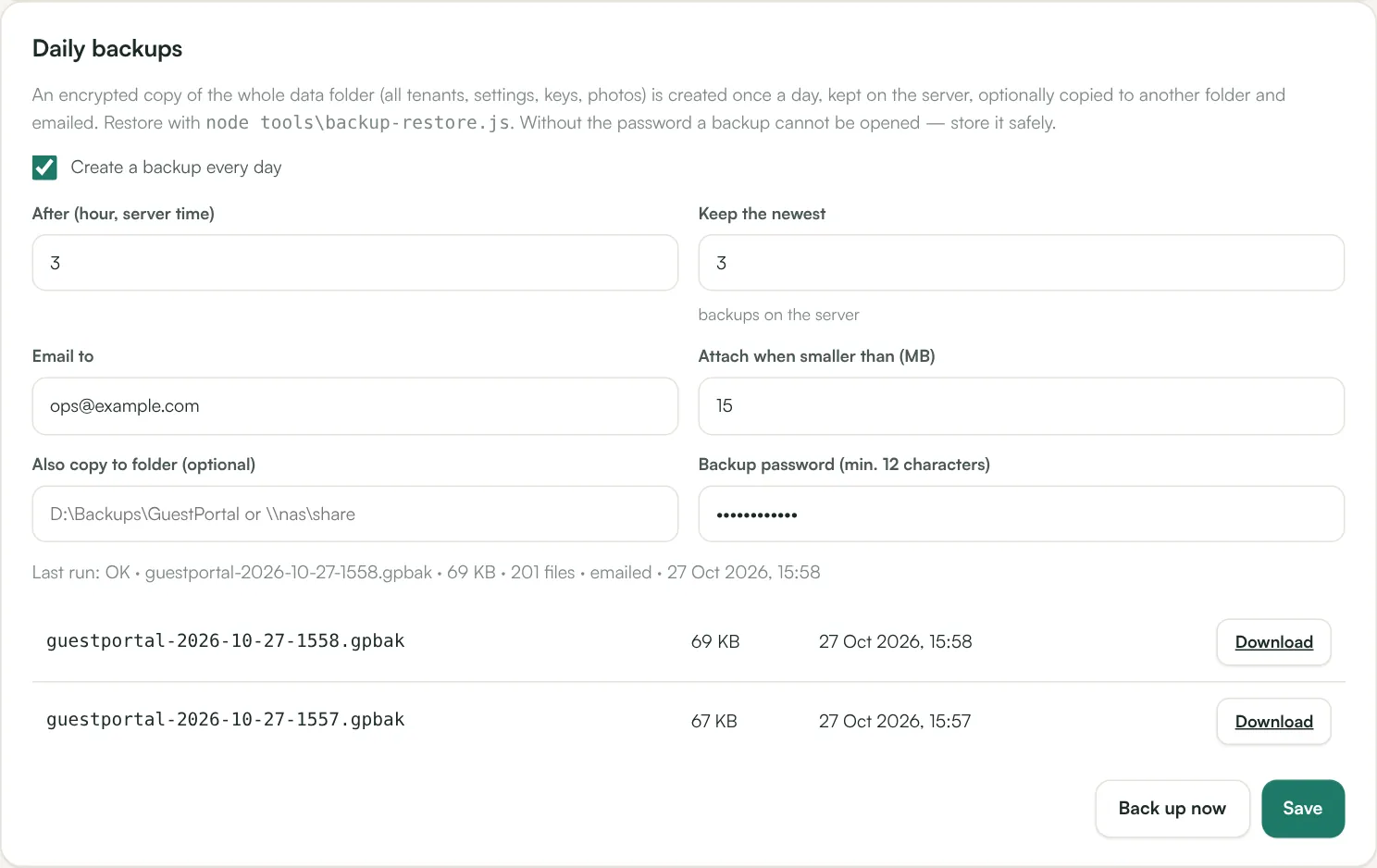
Open Platform → Backups in the operator console.
- Set a backup password (at least 12 characters). Backups always contain guest data and are therefore always encrypted (AES-256-GCM). Write the password down somewhere safe — without it a backup cannot be opened, not even by us.
- Tick Create a backup every day and choose the hour (server time) after which it runs.
- Email to — one or more addresses. The backup is attached when it is smaller than the limit you set (default 15 MB); larger backups are announced by email and stay on the server.
- Also copy to folder — optional, for example a second disk or a NAS share (
\\nas\backups\guestportal). The app pool identity needs write access there. - Keep the newest — how many backups stay in
<DataDir>\backups(default 14). - Save, then Back up now to test. The last run, its size and the email result are shown; each backup can be downloaded.
A failed backup is retried after three hours and reported by email.
Restore a backup #
On the server (or any computer with Node.js) in the application folder:
node tools\backup-restore.js guestportal-2026-10-27-0300.gpbak D:\GuestPortalData-restoredThe tool asks for the backup password and writes all files into the (empty) target folder. To bring a server back:
- Stop the IIS application pool.
- Restore into a new folder outside the web folder.
- Point
HKLM\SOFTWARE\Aloaha\GuestPortal\DataDirat it (both registry views — runinstall\install.batagain, orreg add … /reg:64and/reg:32), or swap the folder names. - Give the app pool modify rights on the folder (the installer does this) and start the app pool.
Active / passive cluster #
Two servers run the same application, each with its own data folder:
- The active node serves all users. Every change in its data folder is sent to the passive node within about half a second, and every 30 seconds both folders are compared and any difference is corrected — this also copies everything the first time and catches up after a network outage.
- The passive node accepts only the replication. Every other request gets 503, and
/healthzanswers 503 on the passive and 200 on the active node, so a load balancer or failover DNS sends users to the active node automatically. - Replication runs over HTTPS. Each request is signed with a shared secret (HMAC-SHA256, timestamp and one-time nonce — no replays). Plain
http://is only accepted for addresses in a private network.
Set it up #
- Install the application on both servers as usual (same version, each with its own data folder).
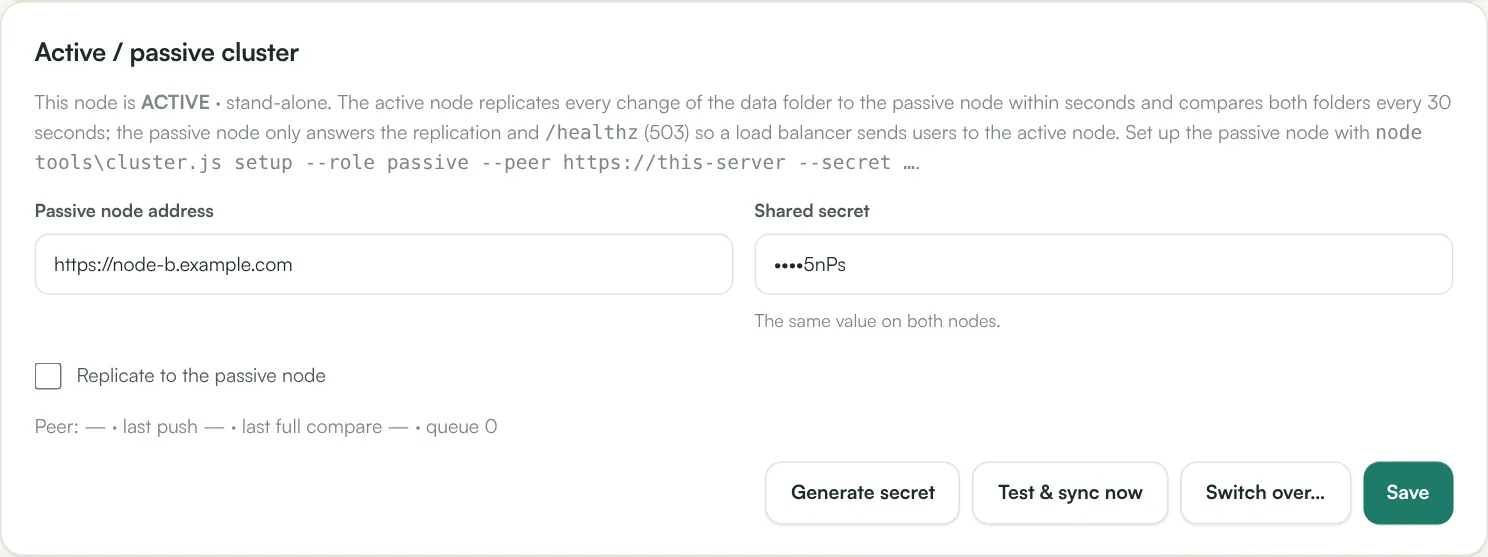
- On the active server open Platform → Cluster, enter the passive node's address (for example
https://node-b.example.com), click Generate secret and copy it. - On the passive server, in the application folder:
`` node tools\cluster.js setup --role passive --peer https://node-a.example.com --secret <the secret> ``
Recycle its app pool; the log shows cluster role passive.
- Back on the active server tick Replicate to the passive node, Save, then Test & sync now. The status shows the peer as reachable and the number of files.
- Point your load balancer's health check at
/healthzon both nodes (or use failover DNS with the active node as primary).
Install the certificates for your host names on both servers (win-acme runs on each), and keep the IIS SMTP pickup folder configured on both.
Planned switch-over #
Platform → Cluster → Switch over… first checks that the passive node is in sync, then promotes it and turns this node into the passive one. Switch your load balancer / DNS if it doesn't follow /healthz automatically.
Failover when the active server is down #
On the passive server:
node tools\cluster.js promoteWithin a few seconds it becomes active (with a higher epoch), starts the background jobs and serves users. When the old server comes back it sees the newer active node, steps down to passive by itself and is brought up to date — it can never overwrite newer data. Background jobs on a returning node start only after it has checked its peer.
Useful commands #
| Command | What it does |
|---|---|
node tools\cluster.js status | Role, epoch, peer and the peer's status |
node tools\cluster.js promote | This node becomes active |
node tools\cluster.js demote | This node becomes passive |
node tools\cluster.js disable | Stand-alone server, no replication |
The node-local settings are stored in <DataDir>\cluster-local.json (never replicated); the registry values ClusterRole, ClusterPeer and ClusterSecret can be used as defaults.
Frequently asked questions #
Are backups also made on the passive node? #
No — only the active node runs scheduled jobs (backups, channel imports, emails). After a failover the new active node takes over the daily backup with the same settings, because the settings are replicated.
What is not replicated? #
Temporary files, the rolling .bak copies (each node keeps its own), the backups folder and cluster-local.json. Everything else in the data folder is.
Can both nodes serve users at the same time? #
No. This is an active/passive design: one node writes, the other stands by. Running both as active is detected and replication is paused until one is demoted.