Payments & taxes · for tenants
Fiscal receipts for short lets in Malta (EXO)
Issue Malta fiscal receipts from Guestbud: automatic on payment, eco-contribution on its own line, credit notes, tax invoices, daily report — fiscal once Guestbud has entered your EXO number, non-fiscal receipts until then.
Malta requires a fiscal receipt for every stay (VAT Act, Art. 51 and the Thirteenth Schedule), and the MTA guidelines require the eco-contribution on its own line, separate from the accommodation. Guestbud can issue these receipts for you — automatically when a guest pays online, and from the booking for money you receive in cash, by bank transfer or through a booking platform.
A receipt from a computerised system is fiscal once the VAT department has given your business an exemption number (EXO number) for that system. Guestbud gives you everything you need for the application.
Guestbud issues two kinds of receipt, each with its own design:
| Without an EXO number | With an EXO number | |
|---|---|---|
| Document | Receipt — marked This is not a fiscal receipt | Fiscal receipt — with your EXO number next to your VAT number |
| Numbers | NF-A-000001 … (own series and journal) | A-000001 … |
| Tax invoices | not possible | possible |
| Your fiscal receipt | from your receipt book, as before | issued by Guestbud |
Only Guestbud enters your EXO number, after checking your grant letter against your business name and VAT number — you cannot type it in yourself. This makes sure no receipt is printed as fiscal with a wrong or invented number.
Get your EXO number #
- Open Settings → Fiscal receipts, fill in your business name, address, VAT number and VAT registration (Article 10, or Article 11 for an exempt small undertaking), and set Receipts to On. Guestbud now issues non-fiscal receipts.
- In the card For the EXO application, print the Supplier letter + system description, a Specimen receipt and a Specimen pre-bill. The letter is filled in with your business and your Malta properties; it is signed by the software supplier. The specimen shows your details, is marked SPECIMEN and is not numbered or stored.
- Ask your auditor to audit Guestbud against the system description in the letter and to write an audit report.
- Apply for the EXO number with the VAT department (Commissioner for Tax and Customs) with the letter, the audit report, the specimen receipt and the specimen pre-bill. Each outlet (property) is applied for separately, even when they share a VAT number.
- When the EXO number arrives, send the grant letter to Guestbud support. You can also type the number into EXO number granted to you (request) in Settings → Fiscal receipts — that is only a request. Once we have checked the grant, we enter the number; from that moment every receipt is a fiscal receipt with your EXO number next to your VAT number.
While an EXO number is set, your VAT number and VAT registration are locked, because the EXO number was granted for them. To change them, or the EXO number itself, contact Guestbud support. Receipts you issued before the EXO number stay in their own journal and keep their NF- numbers.
What a receipt shows #
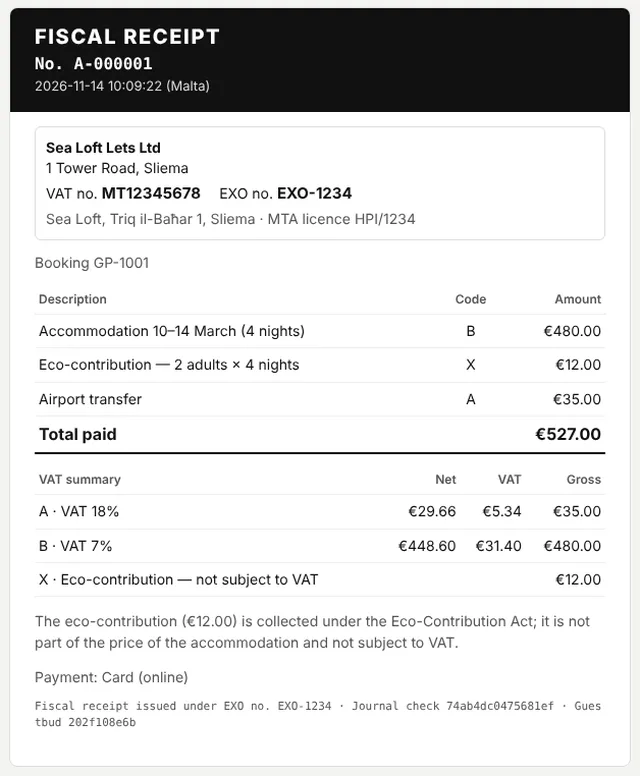
- Your business name, address, VAT number and EXO number; the property's name, address and MTA licence
- A unique number from a gapless series (for example A-000123), date and time in Malta time
- Every line with its VAT code: A 18%, D 12%, B 7%, C 5%, Z 0%, E exempt (Article 11), X eco-contribution — not subject to VAT
- A VAT summary per code (net, VAT, gross), the total paid and how it was paid
- A short journal check code — the start of the receipt's fingerprint in the journal
Article 11 businesses get EXP in front of the VAT number and every line marked E, as the VAT department's guidance requires. The eco-contribution never carries VAT or commission.
Automatic receipts on payment #
With Issue the receipt automatically when a guest pays online switched on (the default), Guestbud issues the receipt the moment a payment is confirmed:
- the eco-contribution (with the payment fee, if you charge one),
- extras such as hampers and transfers,
- early check-in and late check-out (at the accommodation rate).
When you mark the eco-contribution as paid in cash or by transfer, the receipt is issued too. Security deposits get no receipt — a deposit is not a sale. The receipt number is filled in on the eco-contribution card, appears in the Eco return working file, and the guest finds the receipt under Your receipts in the guest portal.
Receipts for money received elsewhere #
Open the booking and click Receipts → Issue fiscal receipt (without an EXO number: Issue receipt (not fiscal)). Guestbud suggests the lines that have no receipt yet — the accommodation (with the booking amount, if known) and the eco-contribution. Change the descriptions and amounts (VAT included), add or remove lines, choose how the guest paid (cash, bank transfer, booking platform, card, other) and click Issue.
Short lets booked through Airbnb or Booking.com still need a fiscal receipt from you: issue it here with Paid by: Booking platform.
Correcting a receipt: credit notes #
An issued receipt can never be changed or deleted. To correct one, click Credit next to it and give a reason. Guestbud issues a credit note with its own number that reverses the receipt in full; then issue the correct receipt. A non-fiscal receipt gets a non-fiscal credit note (NF-…).
Tax invoices for business guests #
A guest travelling for a VAT-registered business can get a tax invoice (VAT Act, Art. 50 and the Twelfth Schedule) with the company's name, address and VAT number. Tax invoices need an EXO number. Article 11 (exempt) businesses cannot issue tax invoices — they issue fiscal receipts only.
- for money received elsewhere: Issue receipt → Document: Tax invoice;
- for a receipt already issued: Credit, tick Re-issue as a tax invoice and enter the company details — one step issues the credit note and the invoice.
Pre-bill #
Pre-bill in the booking shows what the receipt will contain, without a number and marked not a fiscal receipt — for a guest who wants to see the bill before paying.
Number series #
Choose One series for the business (prefix in the settings, e.g. A) or One series per property: then each property gets its own prefix in Settings → Properties → Fiscal receipt prefix (for example SL1 → SL1-000001). Numbers are never skipped or reused; a document that is refused uses no number, and pressing Issue twice issues one receipt. Non-fiscal receipts have NF- in front (NF-A-000001) and their own counter, so they can never be mistaken for fiscal receipts.
VAT rates #
Set the rates in Settings → Fiscal receipts: accommodation (7% by default; also used for early check-in and late check-out), extras (18%) and the payment fee (by default the accommodation rate). A product can have its own rate in Settings → Presets & products. Prices on the receipt include VAT; Guestbud works out the VAT per code. Check the rates with your accountant.
Daily report, journal and integrity check #
Eco return → Receipts — choose the journal first: Fiscal receipts or Non-fiscal receipts (NF-…). Each journal has its own report, export and check.
- Open daily report — per day and number series: first and last number, receipts, invoices and credit notes, totals per VAT code, VAT and amounts not subject to VAT.
- Download journal (.csv) — every document with all details and its fingerprint, for your accountant or an inspection.
- Check integrity — confirms that the numbering has no gaps, that no document was changed, inserted or removed (each document carries the fingerprint of the one before), that the separate append-only copy matches, and that nothing is missing compared with a checkpoint Guestbud keeps outside your data.
Keeping the records #
Fiscal records are kept apart from guest data and are never removed by Guestbud's automatic deletion — not by the two-year deletion of the Malta guest register, nor when you erase a guest's data. If you close your Guestbud account, your fiscal records are moved to a separate archive instead of being deleted. Keep your own copy of the journal export at the end of each year as well.
AI agents #
AI agents can read the receipts of a booking (each marked fiscal or not), the daily report and the integrity check of either journal through the fiscal_receipts tool — without customer details. Issuing receipts and credit notes is only possible in the dashboard, and the EXO number can only be entered by Guestbud. See AI agent (MCP).
Frequently asked questions #
Do I need a fiscal receipt if the guest paid through Airbnb? #
Yes. The booking platform does not issue Maltese fiscal receipts for you. Issue one from the booking with Paid by: Booking platform.
Can I use Guestbud before I have the EXO number? #
Yes. With receipts switched on, Guestbud issues non-fiscal receipts — marked This is not a fiscal receipt, numbered NF-… and kept in their own journal. Keep issuing fiscal receipts from your receipt book until Guestbud has entered your EXO number.
Why can't I enter the EXO number myself? #
Because a receipt with an EXO number is a fiscal document for the VAT department. Guestbud, as the software supplier, checks that the number was granted to your business and VAT number before receipts become fiscal. Send the grant letter to support.
What if I already have a cash register or POS? #
You can keep it. Leave Guestbud's fiscal receipts off and record the receipt number in the booking (Fiscal receipt → Record number).
Your responsibility #
Guestbud issues the receipts as described here; you remain responsible for your VAT and eco-contribution obligations, for the VAT rates you set and for the EXO approval. Check with your accountant and the Commissioner for Tax and Customs.